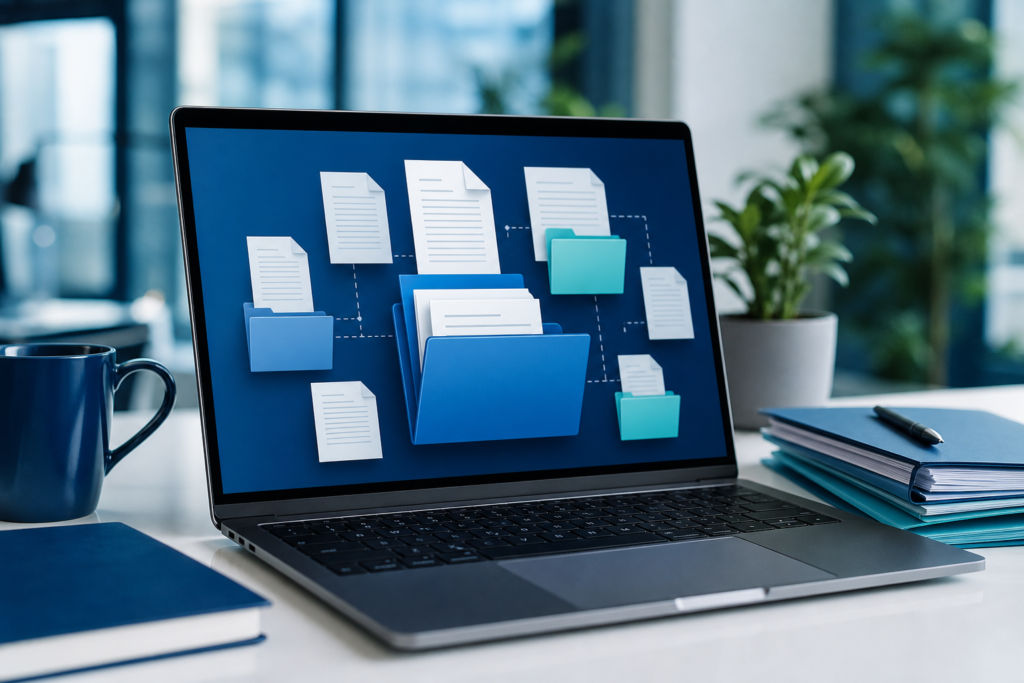
If you regularly send reports, proposals, design drafts, manuals, or archived records, learning how to organize large PDF files for easier sharing can save time for both you and the people receiving them. A messy PDF workflow often leads to slow uploads, bounced emails, version confusion, and frustrated reviewers. A more structured approach makes files easier to find, lighter to send, and simpler to read on any device.
The goal is not just to make a PDF smaller. It is to make the entire sharing experience smoother. That means choosing a clear file structure, removing unnecessary pages, reducing file size where appropriate, and preparing the document so recipients can open it quickly and understand it immediately.
For teams handling many documents, this also improves internal efficiency. Sales teams can send proposals faster, operations teams can distribute policies more cleanly, and agencies can deliver client work in a more polished way. If your organization handles document-heavy workflows, OneCode Pulse can also help you build better digital processes around content management, file handling, and automation.
Why large PDF files become difficult to share
Large PDFs usually become hard to share for a few common reasons:
- They contain too many pages for one purpose.
- They include high-resolution images or scanned pages.
- They combine multiple versions or unrelated sections.
- They were exported without optimizing file size.
- They lack a clear naming and folder structure.
When a file is too large, it may take longer to upload, consume more storage, and frustrate recipients who need only part of the document. In many cases, the issue is not the PDF format itself but the way the content is packaged.
How to organize large PDF files for easier sharing
The best way to organize large PDF files for easier sharing is to treat the file as a delivery package rather than a single giant attachment. Start by deciding what the recipient actually needs. Then divide, label, and compress the content accordingly.
1. Separate PDFs by purpose
Before you combine or compress anything, ask a simple question: what is this file for? A proposal, product catalog, and invoice bundle should not all live in one PDF if they serve different purposes. Separate files by audience, topic, or workflow so each document has a clear job.
For example, instead of sending a 180-page operations manual, create one version for onboarding, one for troubleshooting, and one for reference. That makes it easier for recipients to access the right section without scrolling through unrelated pages.
2. Use clear, consistent file names
File names matter more than many teams realize. A name like final.pdf creates confusion, while a structured name gives immediate context. Use a naming pattern that includes the subject, version, and date if needed.
Examples:
- Client-Proposal-Q2-2026.pdf
- Employee-Handbook-Onboarding.pdf
- Product-Catalog-Spring-2026.pdf
This is especially useful when documents are stored in shared drives or sent between departments. Good naming helps people search, sort, and identify the correct file faster.
3. Split oversized documents into logical sections
If a PDF is large because it covers multiple subjects, split it into smaller files. This makes sharing easier and reduces the chance that someone will open a document only to find irrelevant material.
A logical split might look like this:
- Part 1: Overview
- Part 2: Pricing and terms
- Part 3: Technical appendix
- Part 4: Supporting visuals
When done well, splitting a PDF does not weaken the document. It improves usability. If you need guidance on dividing a file cleanly, this practical resource on how to split a PDF and extract only the pages you need is a helpful place to start.
4. Merge related files only when it helps the recipient
Some users try to organize large PDFs by combining everything into one master file. That can work if the content belongs together and the recipient needs it as a single unit. But merging unrelated files can create the same problem in a different form: one huge document that is still difficult to navigate.
A better rule is to merge related items into one file only when the combined package is genuinely easier to use. For example, a signed agreement, annex, and supporting schedule may belong together. By contrast, a brochure and a tax form should usually stay separate.
If merging is the right approach, this guide to merge PDF files online explains a simple workflow that helps keep file sets tidy.
5. Compress the file without hurting readability
Compression is one of the most effective ways to make large PDFs easier to share, especially when the file contains images, scans, or presentation slides. The key is to reduce size while preserving readability.
Focus on the content that causes bloat:
- Replace oversized images with optimized versions.
- Remove duplicated pages or unused attachments.
- Lower image quality only if the document remains clear.
- Avoid saving multiple unnecessary revisions into one file.
If your PDF includes many visuals, optimizing source images before export can help a great deal. For that, this article on compress images without losing quality can support a better file preparation process.
6. Standardize folders and storage locations
Organizing large PDF files is easier when your storage system is consistent. Use a clear folder hierarchy so documents are not scattered across desktops, email threads, and random downloads folders.
A practical structure might be:
- Clients
- Projects
- Contracts
- Reports
- Archives
Within each folder, keep related PDFs together and use date-based subfolders when needed. This reduces duplication and makes it easier to locate the latest version before sharing.
7. Remove unnecessary pages and extras
Large PDFs often include pages that do not need to be shared: draft notes, outdated screenshots, duplicate cover pages, or internal comments. Removing these extras makes the document shorter, cleaner, and faster to open.
Before sending any PDF, review whether every page adds value for the recipient. If not, trim it. This is especially important for client-facing documents, where clarity and brevity are part of professionalism.
8. Optimize for the way people will receive it
Think about the delivery channel before exporting the file. A PDF intended for email should usually be lighter than one stored on an internal server. A document meant for mobile viewing should have a simpler layout and readable text size. A file shared with a customer may need more polish than an internal working draft.
Different sharing contexts call for different organization choices. A sales proposal, for example, may benefit from one concise PDF, while a technical appendix may be better as a separate download.
Practical workflow for managing large PDFs
A simple workflow can prevent most PDF sharing problems:
- Review the full document and identify the intended audience.
- Remove unnecessary pages, duplicates, and internal notes.
- Split content into logical files if the subject matter is broad.
- Merge only the sections that belong together.
- Use clear naming conventions for every final file.
- Optimize images and compress the PDF where possible.
- Save the final version in a structured folder.
- Test the file by opening it on a different device before sharing.
This workflow is simple, but it creates consistency. Over time, it saves time for everyone involved and reduces mistakes caused by unclear file versions or oversized attachments.
Common mistakes to avoid
When teams try to organize large PDF files for easier sharing, they often fall into a few avoidable traps:
- Using vague names: “final,” “updated,” or “new” do not help anyone.
- Over-merging: one giant PDF is not always better than several focused files.
- Ignoring mobile users: a file that looks fine on desktop may be awkward on a phone.
- Skipping version control: recipients may end up with an outdated document.
- Compressing too aggressively: readability should never be sacrificed just to reduce file size.
Most issues disappear when the document is built around the recipient’s needs rather than the sender’s convenience.
When manual PDF organization is not enough
If your team handles large numbers of PDFs every week, manual cleanup can become repetitive. At that point, it may be worth introducing automation, document workflow rules, or integrated tools that reduce friction across departments.
That can include automated file naming, approval steps, form handling, storage rules, or document routing. For businesses looking to improve operational efficiency, OneCode Pulse offers technology solutions that can support smarter document workflows, digital systems, and process automation.
If your file handling is part of a larger business process, it may also help to think beyond the PDF itself. For example, a document-heavy company might benefit from stronger workflow design, better customer communication systems, or integrated internal tools. Relevant resources include ERP and CRM business systems and AI tools and business automation for broader operational improvement.
In many organizations, the real opportunity is not just reducing file size. It is creating a document process that is faster, clearer, and easier to maintain.
Related resources
Conclusion: organize large PDF files for easier sharing
To organize large PDF files for easier sharing, focus on clarity first: split unrelated content, name files consistently, remove unnecessary pages, and compress only as much as readability allows. A thoughtful structure makes documents faster to send, easier to open, and more useful for the people who receive them. For teams that want to improve document workflows at scale, OneCode Pulse can help design smarter digital systems that support efficient sharing and long-term growth.
Frequently Asked Questions
What is the best way to reduce a PDF file size before sharing?
The most effective approach is usually to remove unnecessary pages, optimize images, and compress the PDF at a level that still keeps text and visuals readable.
Should I always merge several PDFs into one file?
No. Merge files only when they belong together and will be easier for the recipient to use as one document. Otherwise, separate files are often clearer.
How do I decide whether to split a large PDF?
Split a PDF when it contains multiple topics, different audiences, or sections that people may need separately. Logical separation improves usability.
What file naming format works best for shared PDFs?
Use a consistent format that includes the document subject, audience or purpose, and version or date if needed. This makes files easier to identify and sort.
Can I keep large PDFs easy to share on mobile devices?
Yes. Keep the layout simple, avoid unnecessary pages, and compress the file carefully so it opens quickly and remains readable on smaller screens.
Need help improving your document and file workflows?
Talk to OneCode Pulse for a free consultation. We can help you design smarter digital workflows, reduce document friction, and build scalable systems that make sharing and operations easier.