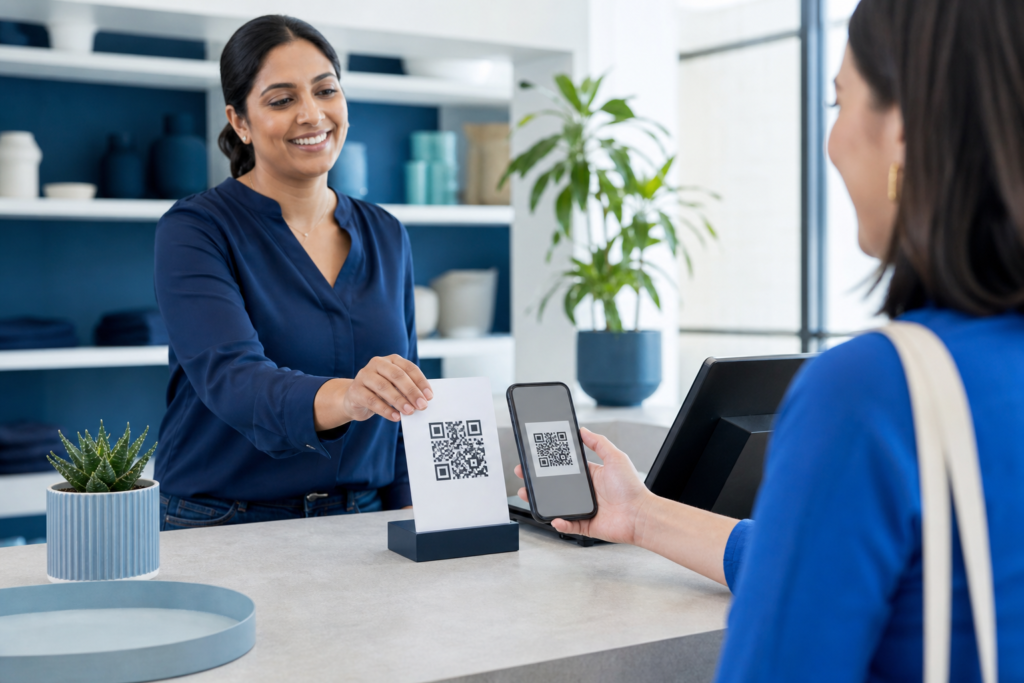
If you want to make it easier for customers to leave feedback, learning how to create a QR code for Google Reviews is one of the simplest practical steps you can take. Instead of asking people to search for your business, scroll through results, and find the review form themselves, you can give them a direct path in one scan.
A well-placed review QR code can reduce friction at the exact moment a customer is most willing to share their experience. That makes it useful for storefronts, service businesses, events, packaging inserts, receipts, business cards, and follow-up emails. The goal is not to force reviews, but to make the process easier for happy customers.
In this guide, you’ll learn how to create a QR code for Google Reviews, what link to use, where to place it, and how to present it in a way that feels professional and natural.
What a QR code for Google Reviews does
A review QR code is simply a scannable code that opens a page where customers can leave a Google review for your business. When someone scans it with their phone camera, they are taken directly to your review flow instead of having to search manually.
This is useful because review collection often fails at the “too much effort” stage. Even satisfied customers may delay the task and never come back to it. A QR code helps capture feedback while the experience is still fresh.
If you are also thinking about the design side of the code itself, OneCode Pulse offers a helpful QR Code Generator with Logo that can support branded, professional-looking QR assets for business use.
How to create a QR code for Google Reviews step by step
1. Get your Google review link
The first step is to find the direct Google review link for your business profile. This is the URL customers should open when they scan the code. The exact method can vary depending on how your Google Business Profile is set up, but the key requirement is simple: you need a link that takes users straight to the review page, not just your homepage.
Before you build the QR code, test the link on a phone. If it does not open the review form quickly and clearly, fix that first. A QR code is only as good as the destination behind it.
2. Use a reliable QR code generator
Once you have the correct review link, paste it into a QR code generator. Choose a tool that creates a high-resolution code and allows you to download it in a print-friendly format such as PNG or SVG. If you plan to use the code on posters, menus, packaging, or signage, clarity matters.
At this stage, keep the design simple. Avoid overcrowding the code with too much styling or reducing the contrast too far. A QR code must scan quickly in real-world conditions, not just look attractive on screen.
3. Customize it carefully
You can add light branding if needed, such as a logo in the center or business colors around the code, but usability should remain the priority. Make sure the quiet zone around the code is preserved and that the code still scans from a range of phone cameras.
If your business already uses a broader digital strategy, it may help to connect this effort with Digital Marketing and Customer Engagement, especially when you want review collection to fit into your customer journey rather than stand alone.
4. Test the QR code before publishing
Always test the final code with multiple devices. Check that it:
- scans quickly from a reasonable distance
- opens the correct Google review page
- works in good and low light
- is readable when printed at the intended size
Testing is especially important if the code will be used on signs, receipts, or packaging, where people may scan it in less-than-perfect conditions.
5. Download and place it where customers will notice it
Once you are satisfied with the result, download the file and place it in high-intent customer touchpoints. The best QR codes for reviews are often used right after a service is completed or at the point of purchase.
Tip: The easier the scan and the more relevant the moment, the more likely customers are to leave a review.
Best places to use a Google Reviews QR code
The best placement depends on how your business interacts with customers. Here are common examples:
| Placement | Why it works |
|---|---|
| Checkout counter | Reaches customers while their experience is still fresh |
| Table tents or menus | Useful for restaurants, cafés, and hospitality businesses |
| Receipts or invoices | Provides a simple follow-up prompt after purchase |
| Packaging inserts | Works well for product-based businesses |
| Email signatures or follow-up emails | Extends review requests into post-service communication |
| Business cards and flyers | Helpful for events, local services, and field-based teams |
If you are building a broader customer communication system, you may also find value in learning from How to Create a WhatsApp Link for Your Business, since both tools help customers take quick action with minimal effort.
How to make the QR code more effective
Use clear supporting text
Do not rely on the QR code alone. Add simple, direct text such as “Scan to leave a Google review” or “Tell us about your experience.” This makes the purpose obvious and reduces hesitation.
Keep the request respectful
A good review request is polite and neutral. Avoid language that pressures customers or suggests only positive feedback is welcome. That can undermine trust.
Match the design to your brand
Your QR code should look like it belongs to your business. Use consistent colors, typography, and visual spacing. If the code appears professional, people are more likely to trust it and scan it.
Place it in the right moment
Timing matters. Ask for reviews when the customer has just received value, completed a service, or had a positive interaction. That is often more effective than a generic request sent much later.
Common mistakes to avoid
When businesses create a QR code for Google Reviews, they sometimes make a few avoidable mistakes:
- linking to the wrong page, such as the business homepage instead of the review form
- using a low-resolution image that becomes blurry when printed
- adding too much decoration and making the code hard to scan
- placing the code where customers never look
- failing to test the code on real devices before distribution
Another common issue is assuming a QR code alone will solve review generation. It works best when combined with good customer service, clear instructions, and a process for follow-up. For businesses that want to connect reviews with broader visibility goals, SEO and Digital Visibility can provide useful context for how reviews support trust and discoverability.
A simple workflow you can reuse
If you want a repeatable process, use this framework:
- Find your direct Google review link.
- Generate a QR code from that link.
- Customize it lightly for branding.
- Test it on several phones.
- Export it in a high-quality format.
- Place it in customer-facing locations.
- Add a short, polite review prompt nearby.
This approach keeps the process practical and makes it easier to maintain consistency across print and digital materials.
Conclusion
Creating a QR code for Google Reviews is a simple but effective way to reduce friction in the review process. When the link is correct, the design is clear, and the placement is thoughtful, customers are far more likely to scan and respond. Focus on ease, timing, and trust, and your review request will feel like a natural part of the customer experience rather than an interruption.
Conclusion: QR Code for Google Reviews
A QR Code for Google Reviews works best when it is simple, scannable, and placed where customers are already engaged. Use a direct review link, test the code carefully, and pair it with polite wording so leaving feedback feels quick and natural. If you want help building a smoother review or customer engagement workflow, OneCode Pulse can help you plan the right digital solution for your business.
Frequently Asked Questions
How do I get the direct link for my Google review page?
Use your Google Business Profile and find the review-sharing option. The link should open the review flow directly, not just your business listing or homepage. Always test it on a mobile device before turning it into a QR code.
Can I use the same QR code on print and digital materials?
Yes. A single QR code can be used on posters, receipts, packaging, emails, and social graphics as long as the destination link stays the same and the code remains clear enough to scan in each format.
Should I add my logo to the QR code?
You can, but keep it light. A logo can improve brand recognition, but the code must still scan reliably. Test it carefully after any design changes.
Where is the best place to show a review QR code?
The best place is usually where customers are most satisfied and least distracted, such as checkout counters, invoices, packaging inserts, or post-service follow-up emails.
Do I need a separate QR code for each location or branch?
If each location has its own Google Business Profile, a separate QR code is usually better so reviews go to the correct listing. If you only have one profile, one code is enough.
Need a better way to collect customer reviews?
OneCode Pulse can help you design a clean, effective review workflow that fits your brand and customer journey. Contact us for a free consultation to explore the right setup for your business.