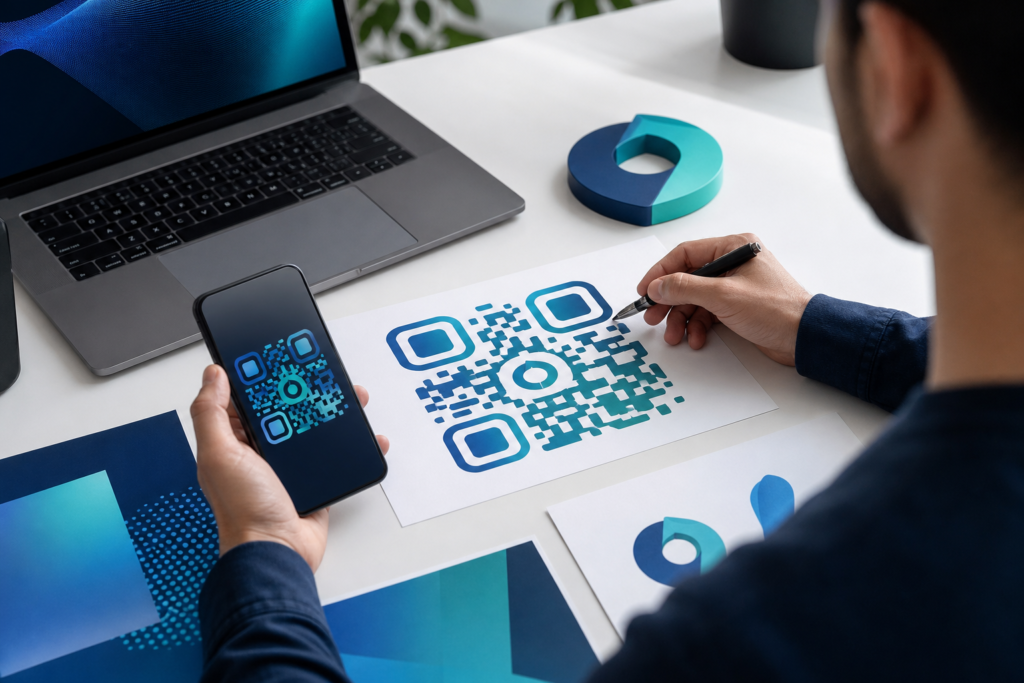
If you want your printed materials, packaging, or digital assets to feel more polished and on-brand, learning how to create a QR Code with a Logo is a smart place to start. A branded QR code can make your code easier to recognize, help it fit your visual identity, and encourage people to scan it with confidence.
The key is to combine good design with dependable functionality. A QR code should still scan quickly and accurately, even when a logo is added. That means choosing the right size, keeping enough contrast, protecting the quiet zone around the code, and testing the final version before you use it anywhere public.
In this guide, you’ll learn the practical steps to create a QR Code with a Logo, along with branding tips, format choices, and common mistakes to avoid. Whether you’re using it for a business card, poster, product label, or landing page, the same core principles apply.
What a QR code with a logo actually does
A QR code with a logo works the same way as a standard QR code. It can send people to a website, a contact card, a payment page, a menu, a form, a WhatsApp chat, or another destination. The logo does not change the code’s function; it changes the presentation.
The logo usually sits in the center of the QR code, often inside a small white or light-colored space that keeps the code readable. This branding element can make the code look more trustworthy and professional, but it must be used carefully so the code remains scannable.
If you’re building a QR code for customer-facing materials, it can also be helpful to think about how it fits into your wider digital strategy. For example, a QR code may support campaigns, landing pages, or contact flows tied to Digital Marketing and Customer Engagement.
Before you create a QR code with a logo
Before opening a generator, decide what the QR code should do. A QR code is only useful if the destination is clear and relevant. Start with one purpose, such as:
- Opening a website or landing page
- Starting a WhatsApp conversation
- Sharing a PDF or product guide
- Collecting sign-ups or feedback
- Displaying contact details
Next, prepare the logo. A simple, high-resolution version is best. Square logos often fit more cleanly, but rectangular logos can work if the generator allows extra spacing. If your logo file is too large or has the wrong proportions, resize it first with a tool like the Image Resizer so it sits neatly inside the code.
You should also decide where the code will be used. A QR code that will appear on a business card needs different sizing considerations than one placed on a storefront sign or event banner. The smaller the final print size, the more careful you need to be with contrast and scan testing.
How to create a QR Code with a Logo step by step
1. Choose the destination URL or action
Start with the final location users should reach after scanning. Keep the link short, stable, and relevant. If the QR code points to a page that changes often, make sure the destination stays valid over time. For marketing campaigns, a simple landing page is usually better than a long, cluttered URL.
2. Use a reliable QR code generator
Select a generator that supports logo uploads, adjustable colors, and high-resolution export formats. If you want a straightforward option built for this purpose, the QR Code Generator with Logo is the most directly relevant tool in the OneCode Pulse ecosystem.
A good generator should let you preview the result before downloading it. That preview matters because a code that looks attractive on-screen may not perform well in print if the logo is too large or the contrast is too low.
3. Upload your logo and position it carefully
Place the logo in the center or another supported position recommended by the generator. Keep the logo relatively small compared with the full QR code area. As a general design principle, the QR pattern must remain dominant, while the logo should act as a subtle brand mark rather than a focal point.
If the logo has a complex background, try using a transparent version or a simplified monochrome version. Clean shapes usually scan more reliably than detailed artwork with thin lines.
4. Adjust colors without reducing contrast
Color is useful for branding, but QR codes depend on contrast. Dark code modules on a light background are the safest choice. Avoid low-contrast combinations like light gray on white, pale brand colors on beige, or patterns behind the code.
When in doubt, test the design on both a screen and a printed sample. Some colors that look strong digitally can become less distinct in print, especially on textured paper or glossy surfaces.
5. Keep the quiet zone intact
The quiet zone is the blank margin around the QR code. It helps scanners identify where the code begins and ends. Do not crowd the code with logos, icons, text, decorative borders, or nearby images. Even if the generator allows a logo, the surrounding space still needs to remain clean and open.
6. Download the highest-quality format available
For print, vector or high-resolution formats are usually preferable. For digital use, a high-quality PNG may be enough. The right file type depends on where the code will appear and how large it needs to be displayed. If you plan to resize later, choose the sharpest source file possible so you don’t lose detail.
7. Test the code on multiple devices
Testing is not optional. Scan the code with different phones, at different distances, under different lighting conditions. If possible, test from the actual surface it will be printed on. A QR code that scans perfectly on your monitor may behave differently on a flyer, label, or sign.
To reduce mistakes in production, it helps to follow broader image and file-preparation habits. If you’re working with multiple assets for print or upload, the How to Compress Images Without Losing Quality guide can help you keep files efficient without damaging visual clarity.
Best practices for a branded QR code
A QR code with a logo should look intentional, not decorative. The best versions are simple, legible, and tied directly to a user action. These practices help:
- Keep the logo modest in size
- Use strong foreground-background contrast
- Leave enough blank space around the code
- Match the code style to your brand without overdesigning it
- Always test before printing or publishing
It also helps to add a short, plain-language callout near the code, such as “Scan to view menu,” “Scan for contact details,” or “Scan to chat on WhatsApp.” A QR code should never be left without context if the audience may not immediately understand what they’ll get after scanning.
Design the QR code for the scanner first and the brand second. A beautiful code that fails to scan is not useful.
Common mistakes to avoid
Many QR code problems are caused by avoidable design choices. Here are the most common ones:
| Mistake | Why it causes problems | Better approach |
|---|---|---|
| Using a logo that is too large | It can obscure important code modules | Keep the logo small and centered |
| Choosing weak color contrast | Scanners may struggle to detect the code | Use dark modules on a light background |
| Printing too small | Phones may not focus well enough | Increase the display size and test again |
| Placing text too close | The quiet zone becomes cluttered | Leave breathing room around the code |
| Skipping scan tests | Problems are only discovered after distribution | Test multiple devices before use |
If your QR code will be part of a broader system, such as a product journey, support workflow, or customer service flow, consider how it fits into your website and digital operations. OneCode Pulse also helps businesses design scalable digital experiences through Website and E-Commerce Development.
Where to use a QR code with a logo
Branded QR codes can be effective in many settings:
- Business cards and brochures
- Restaurant menus and table tents
- Product packaging and inserts
- Posters, flyers, and event signage
- Sales materials and presentations
- Email signatures and digital handouts
For each use case, the surrounding message should make the benefit obvious. A QR code on packaging may direct customers to setup instructions, while one on a poster may take them to an event registration page or offer.
If your goal is to improve customer interaction through quick-access links, a tool like WhatsApp Link & QR Generator can be especially useful for campaigns that want a direct conversation channel.
How to make your QR code more effective over time
Once your QR code is live, monitor whether it is being used as intended. If the code links to a landing page, make sure the page remains fast, mobile-friendly, and relevant. If the destination is a contact path, keep the information current. A QR code can only support business goals when the destination experience is maintained.
It is also worth aligning the code with the rest of your digital content. The code should not feel disconnected from your website, campaign visuals, or brand voice. Consistency builds trust and makes scanning feel like a natural next step.
For teams building QR codes as part of a larger strategy, a coordinated approach to branding, automation, and customer experience can improve how these touchpoints work together.
Conclusion: How to create a QR Code with a Logo
Learning how to create a QR Code with a Logo is less about decoration and more about balance. A strong branded QR code should be easy to recognize, simple to scan, and aligned with the action you want users to take. When you choose the right destination, keep the logo modest, preserve contrast, and test across devices, you create a QR code that supports both branding and usability.
If you want expert help designing a QR code experience that fits your brand and campaign goals, OneCode Pulse can help you plan and build it with a free consultation.
Frequently Asked Questions
Can a QR code still work if it has a logo in the middle?
Yes, a QR code can still work with a logo in the middle as long as the logo is not too large and the code remains high-contrast and properly tested.
What file format is best for a QR code with a logo?
For print, a high-resolution or vector format is usually best. For digital use, a sharp PNG is often enough if it stays clear at the final display size.
How big should the logo be inside a QR code?
The logo should be kept relatively small so it does not cover too much of the code pattern. The exact size depends on the generator, but the code itself should remain the visual priority.
Why does my QR code with a logo not scan properly?
Common reasons include low contrast, an oversized logo, a code that is too small, a cluttered quiet zone, or a destination that opens slowly or fails to load.
Should I use a dynamic or static QR code for branded marketing?
Dynamic QR codes are often better for campaigns because they let you update the destination later without changing the printed code. Static codes can work well for permanent uses if the destination will not change.
Need help creating a branded QR code that works well?
Partner with OneCode Pulse for a free consultation. We can help you design a QR code experience that fits your brand, supports your campaign goals, and works smoothly across print and digital use.